

Developer Tip
You can also access your agent programmatically via the QuickSilver API, making it easy to integrate your agent into your own apps, bots, or backend systems.Step 1 — Sign in
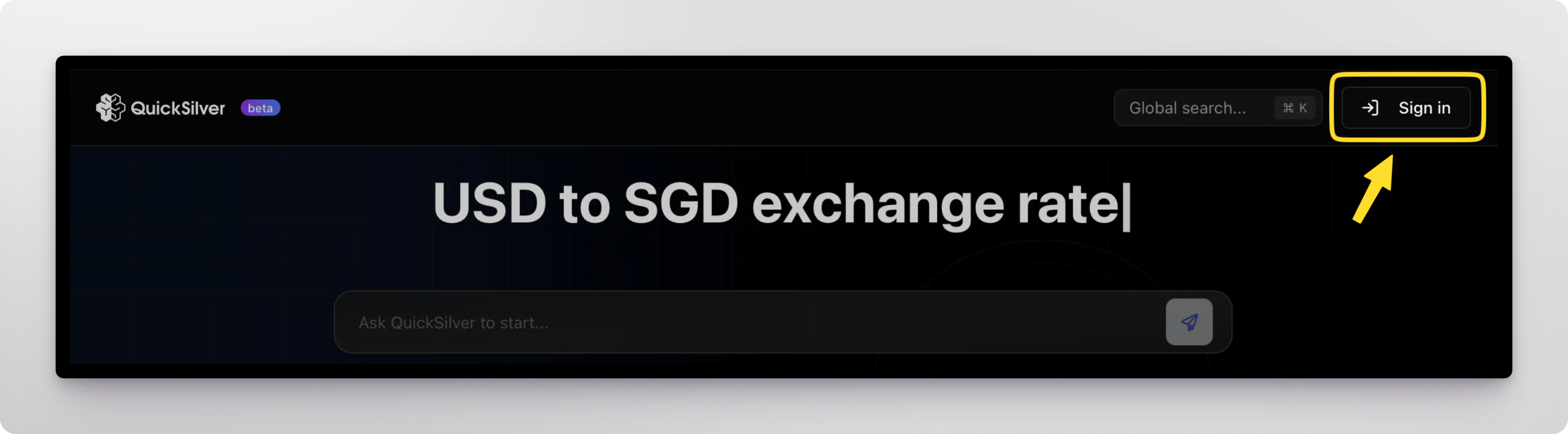
Before you begin, log in to your Quicksilver account:- Go to: https://qs.iotex.ai/sign-in and click the “Sign in” button
Step 2 – Create a New Agent
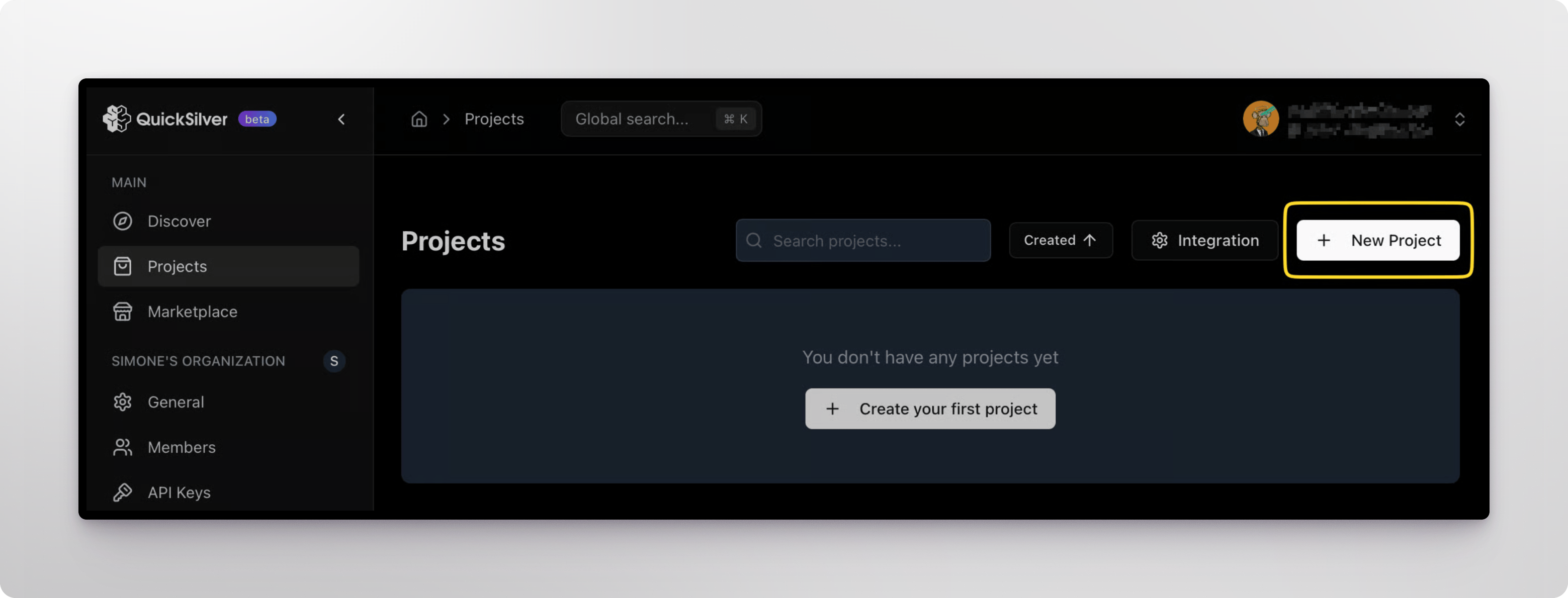
- From the left panel, navigate to your projects dashboard: https://qs.iotex.ai/projects
- Click the ”+ New Project” button
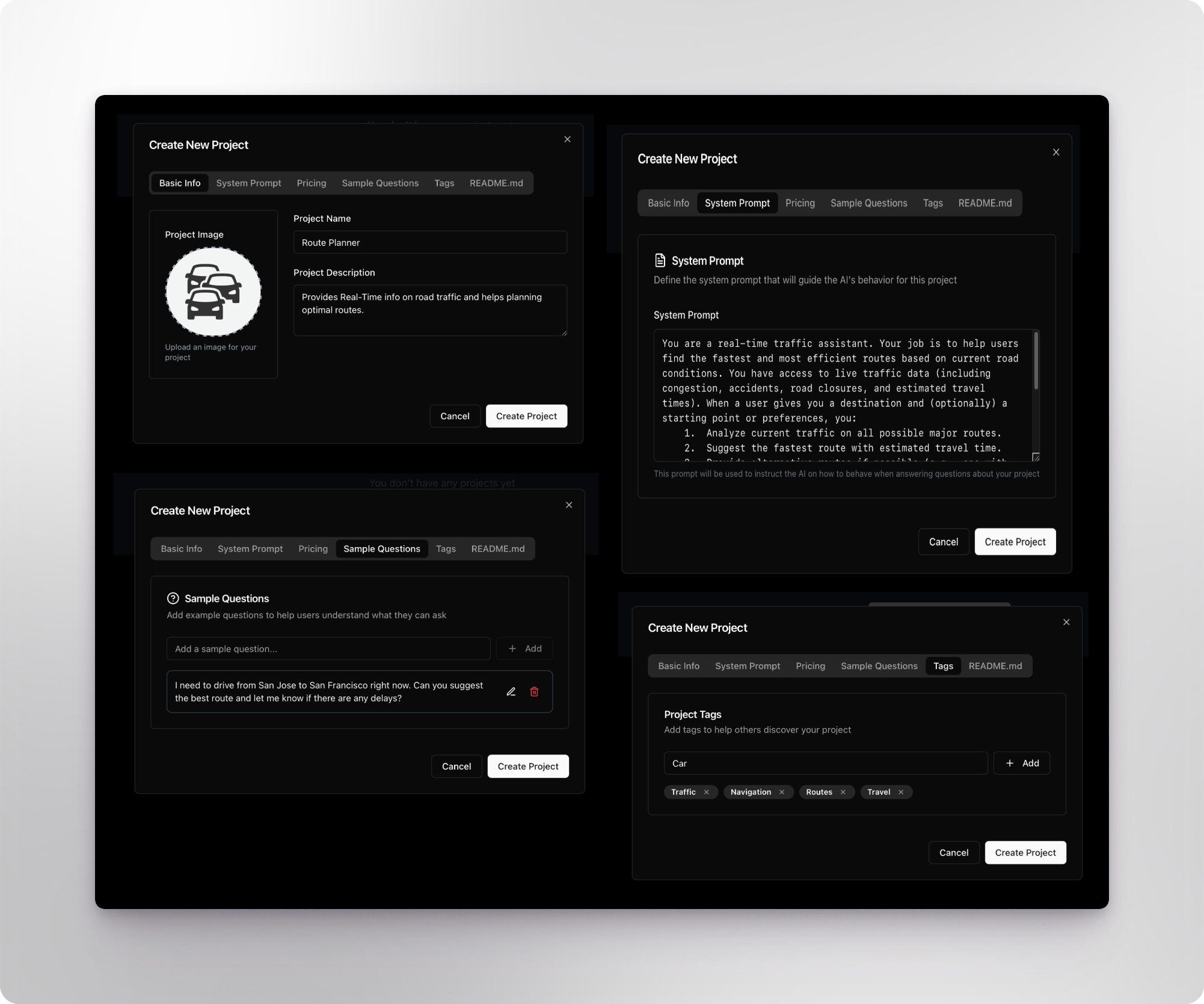
- Fill in your Agent’s basic information:
- Name – Chose a clear and descriptive name for your agent
- Description – Describe what the Agent can do
- System Prompt – Define your Agent’s functional boundaries and expected behavior: define this prompt carefully as it will define how your Agent responds to user queries.
- Example Questions: include some example questions that a user would want to ask to this agent
- Tags: include tags to help users find this Agent when they search for specific features
- README: include any additional documentation in the Readme.md file
Step 2 – Add an API Schema
- After creating the Agent, you can also access it from your Projects Dashboard.
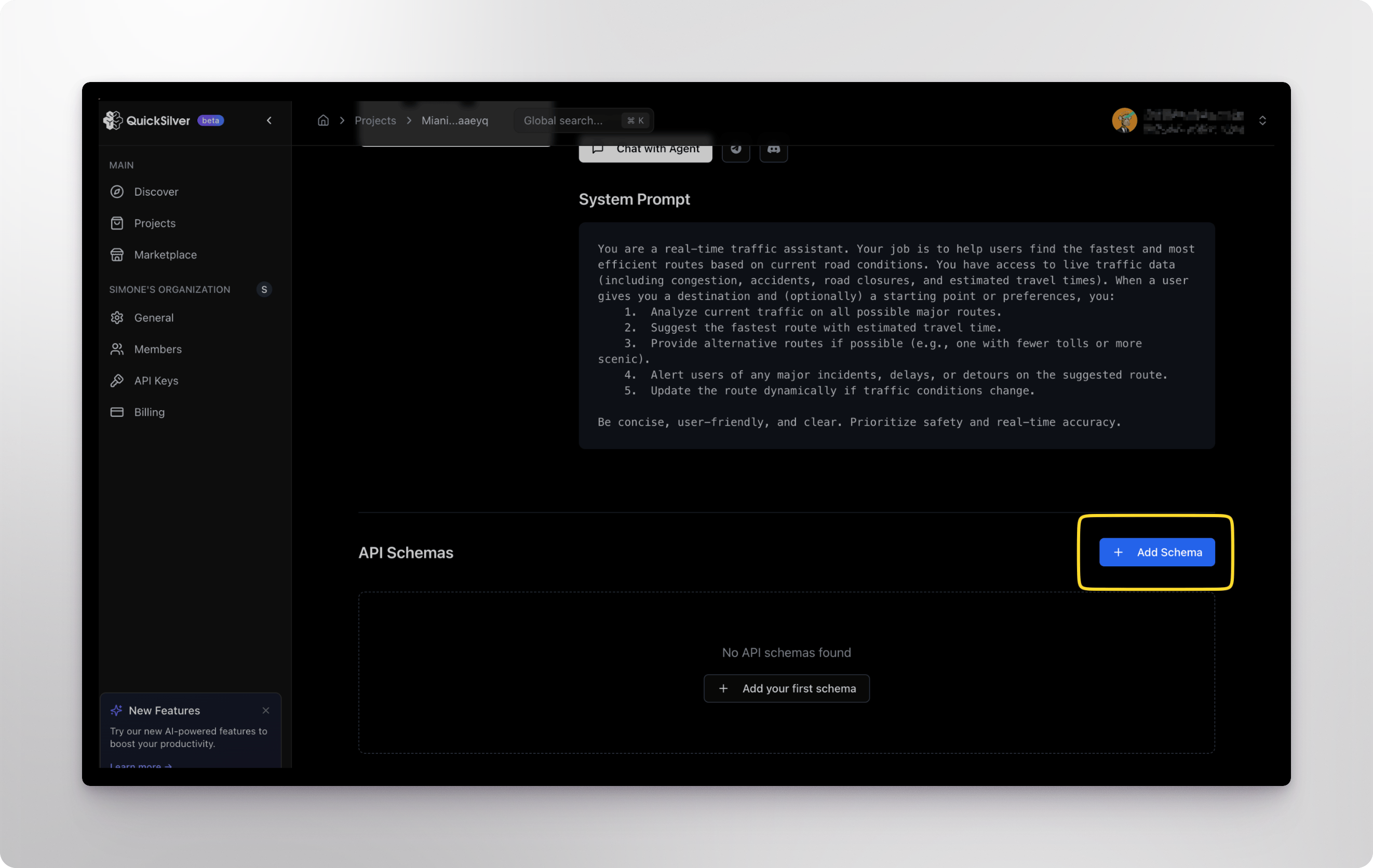
- Open the Agent details page:
- Scroll down the details page and click on “Add Schema” to start defining the APIs your Agent will use:
- Start from providing the API schema basic details:
- Schema Name: A clear name for this API, will help identifying this API in your dashboard
- Description: A description of the API
- API endpoint: the API server endpoint
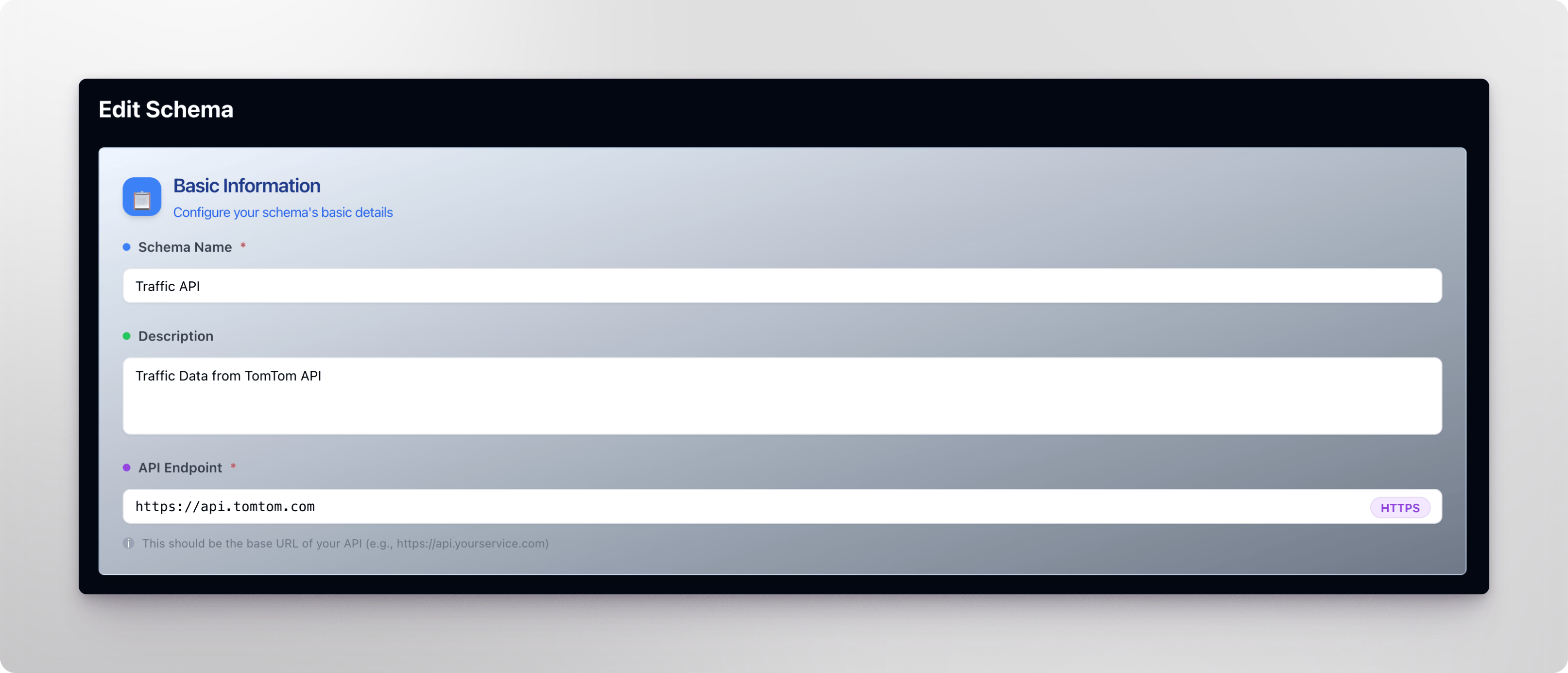
- Next, define the API schema by providing the OpenAPI or curl specification:
- Ensure you include descriptions for each endpoint and its input/outputs for better results when the Agent decides which endpoint to use when replying to user queries:
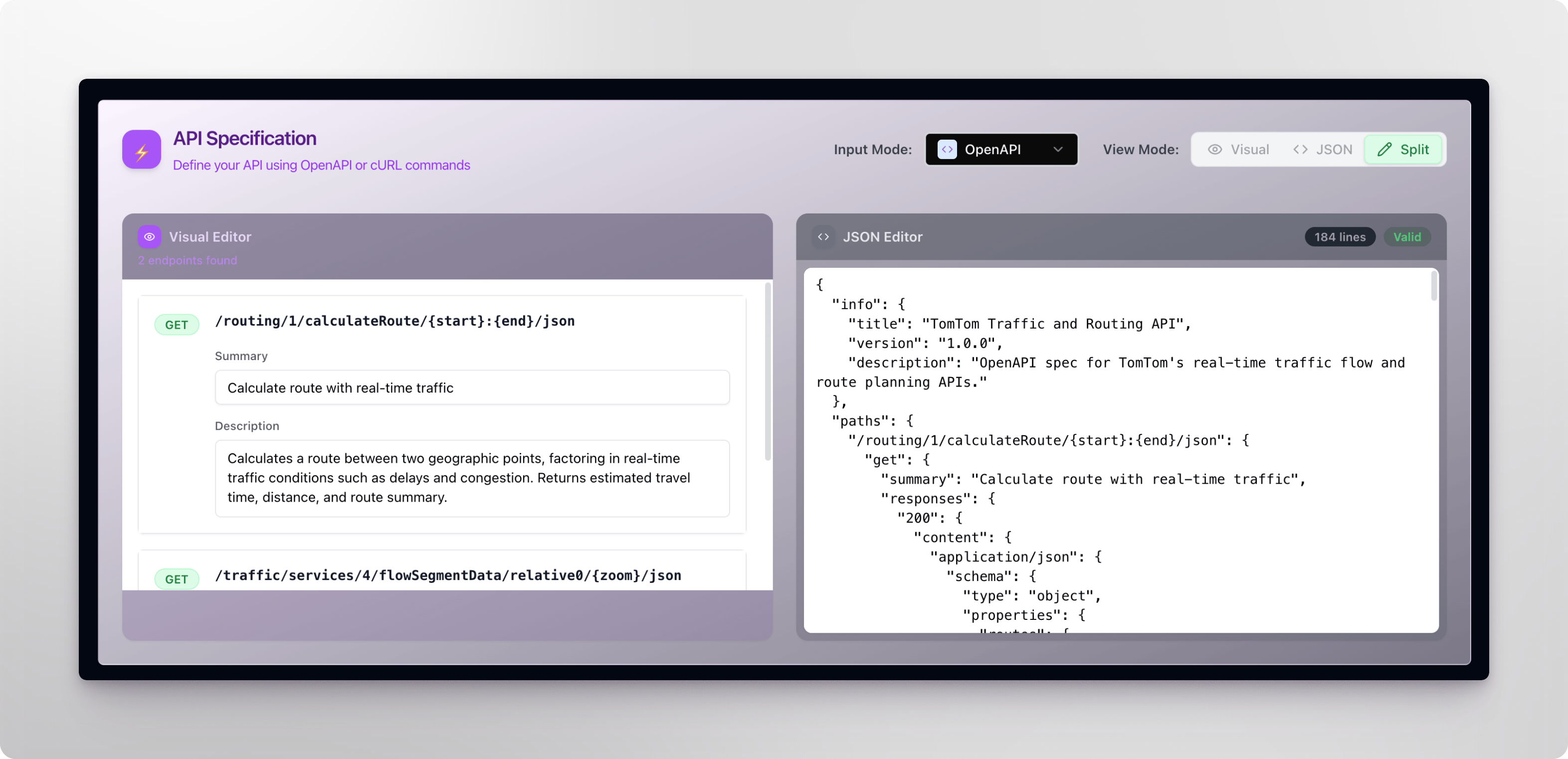
Step 3 — Publish your Agent
Once your Agent is ready, you can use the Publish button in the top right of the Agent’s page to publish/unpublish the Agent to Quicksilver: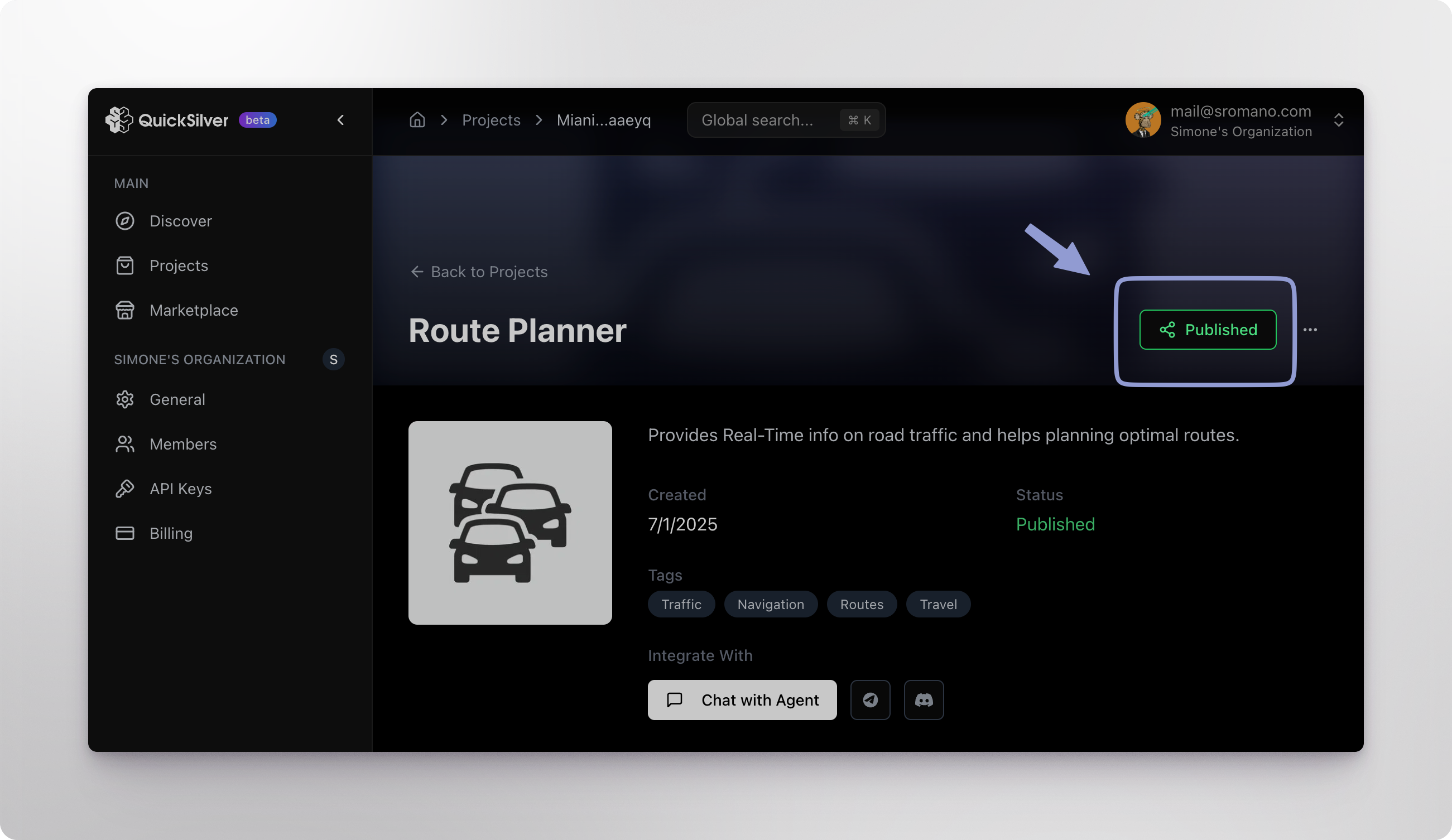 Your Agent is Now Live!
- It will appear on the Quicksilver portal.
- Users can engage with it via:
- The Global Entry (shared chat box on the home page)
- Direct Selection (agent-specific chat window)